Linking to Local Documents
Hypertext links to files on the local file system are specified using the link inline macro.
link:<target>[<caption>]
The link macro generates relative URLs. The link macro <target> is
the target file name (relative to the file system location of the
referring document). The optional <caption> is the link’s displayed
text. If <caption> is not specified then <target> is displayed.
link:get-started.html[]
Renders:
link:get-started.html[Start]
Renders:
If you want more enhancement and focus on specific link, you want probably to use buttons links as provided by Bootstrap.
It’s now possible with this major version 3 of AsciiDoc-Bootstrap backend.
Let’s restart our example, with the single link, and apply it a button style.
link:get-started.html[role="primary"]
Renders:
Change the text
link:get-started.html["Start Tour",role="primary"]
or with alternative
link:get-started.html[caption="Start Tour",role="primary"]
Renders:
role attribute.
(inverse, default, primary, info, success, warning, danger).You want probably more than just a button. Adding an icon will improve again more the look and feel !
link:get-started.html["Start Tour",role="info",icon="glyphicon-play-circle"]
Renders:
And finally, choose what side you want to put your icon.
link:get-started.html["Whats wrong",role="danger",icon="glyphicon-remove-circle",options="right,white"]
Renders:
Images
Inline images are inserted into the output document using the image macro.
image:<target>[<attributes>]
The contents of the image file <target> is displayed.
-
The optional options attribute with value responsive provides a way for Bootstrap 3 to fluid IMG size. Images are not responsive by default.
image:images/screenshots/bs2default-navbar-default-jumbotron-toc2.png[options="responsive"]
Renders:
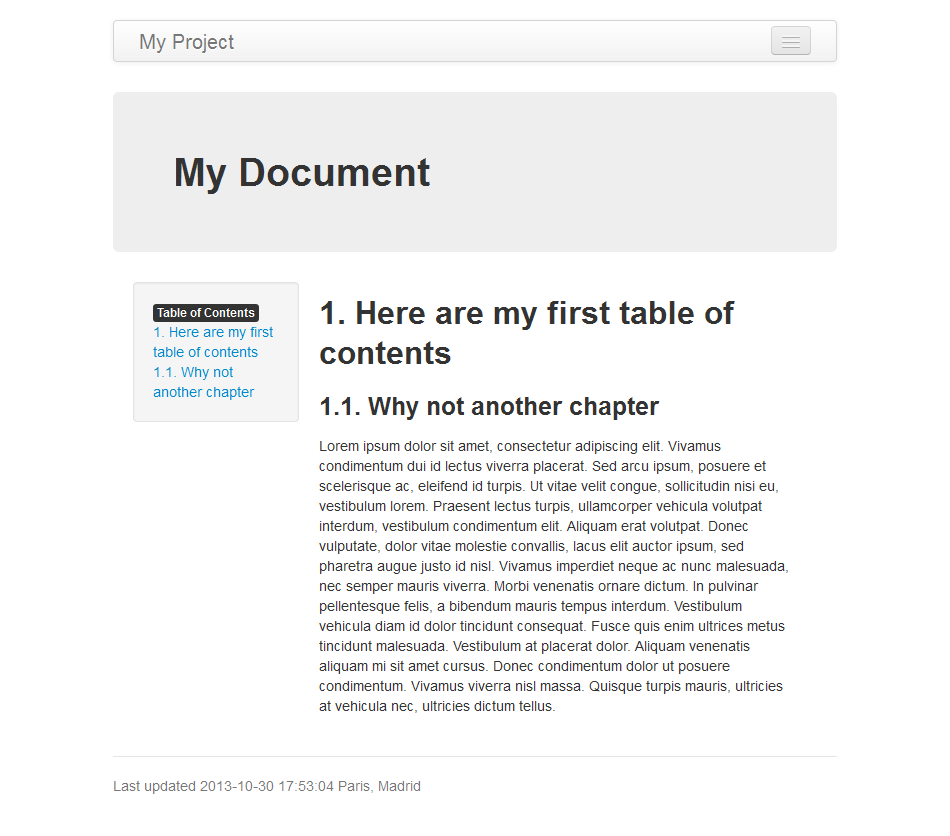
Try several resolution and see what happens with or without responsive option.
About this document
How to build the source code
[https://raw.github.com/llaville/asciidoc-bootstrap-backend/master/docs/macros.asciidoc]
.